
Formatted Memory Card Recovery: How to Restore Lost Files Safely
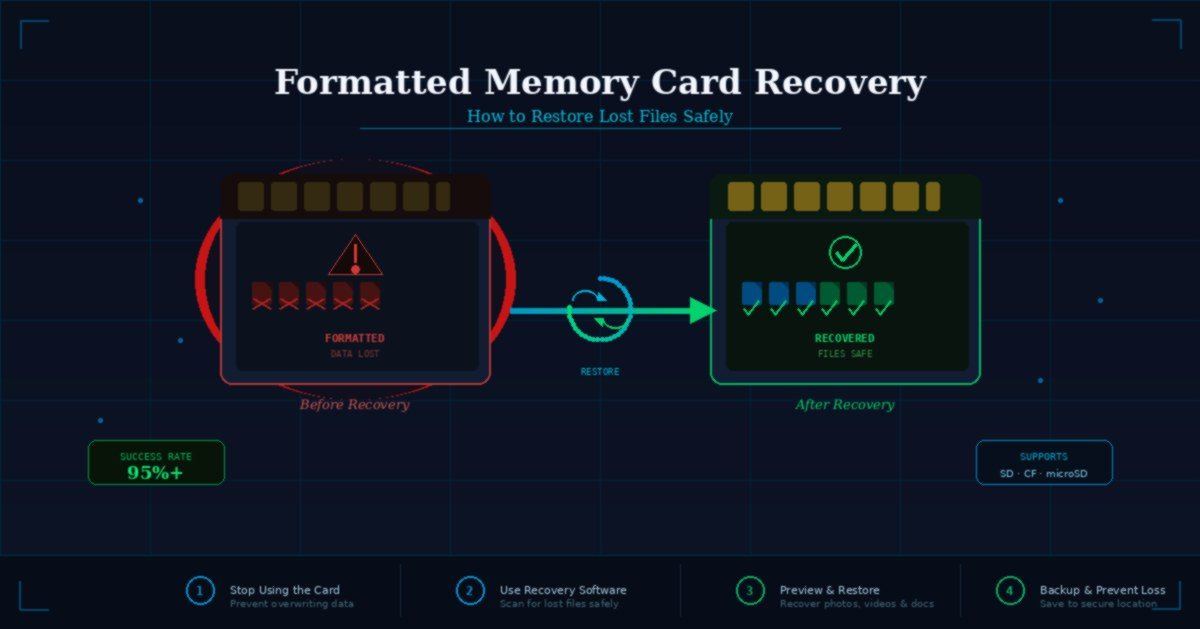
Formatted memory card recovery is a common challenge, but the good news is that formatting doesn’t usually destroy original files immediately. In most cases, data remains on the storage blocks until it is overwritten. To ensure a high success rate, using a professional tool like Wondershare Recoverit is a practical choice for restoring photos, videos, and documents.
Whether you are dealing with an SD card, microSD, or camera card, acting fast is critical. Once new data is written to the card, the chance to recover formatted memory card data drops significantly.
Why Recovery Is Still Possible
When a card is formatted, the file system removes the “path” to the data rather than wiping the data itself. Recovery success typically depends on:
- The type of format (Quick vs. Deep/Full).
- Whether new files were saved after the format.
- The physical health of the card.
- The efficiency of your memory card data recovery tool.
Common Reasons for Formatting Data Loss
Users often need to restore files from formatted memory card due to:
- Accidental formatting via camera or PC settings.
- “Card must be formatted” error prompts (RAW file system).
- File system corruption or virus infections.
- Unsafe ejection during data transfer.
Essential First Steps Before Recovery
To maximize the chances of successful recovery, follow these rules:
- Stop using the card immediately to avoid overwriting data.
- Remove it from the device (camera/phone).
- Connect it to a stable computer using a high-quality card reader.
- Use a reliable data recovery software to scan the drive.
- Important: Never save restored files back to the same card.
3 Steps to Recover Files With Recoverit
Step 1: Select the Card in Recoverit
Connect your formatted card to the PC. Launch Recoverit and select the card under the “External Devices” section.

Step 2: Scan for Lost Data
Click “Start” to perform a deep scan. The software will search for fragments of files that remain after the format. You can use the memory card data recovery feature to filter by file type.
Step 3: Preview and Restore
Once the scan is complete, preview the found photos or videos. Select the items you need and click “Recover” to save them to a safe drive. For specific camera users, SD card recovery ensures even fragmented video files are reconstructed.
Tips to Improve Recovery Success
- Avoid Double Formatting: Do not attempt to “fix” the card by formatting it again.
- Check Previews: Use the preview feature to verify file integrity before the final export.
- Use Different Storage: Always save recovered data to your local hard drive or cloud storage first.
Why Choose Recoverit for Formatted Cards?
Recoverit stands out because it simplifies the complex process of formatted memory card recovery. It supports a wide range of file formats and storage brands (SanDisk, Samsung, Kingston, etc.), offering a user-friendly interface that requires no technical expertise.
Final Thoughts
If you mistakenly formatted your storage, don’t panic. Perform a formatted memory card recovery as soon as possible. By using Recoverit, you can scan, preview, and restore files from formatted memory card safely and efficiently.
